
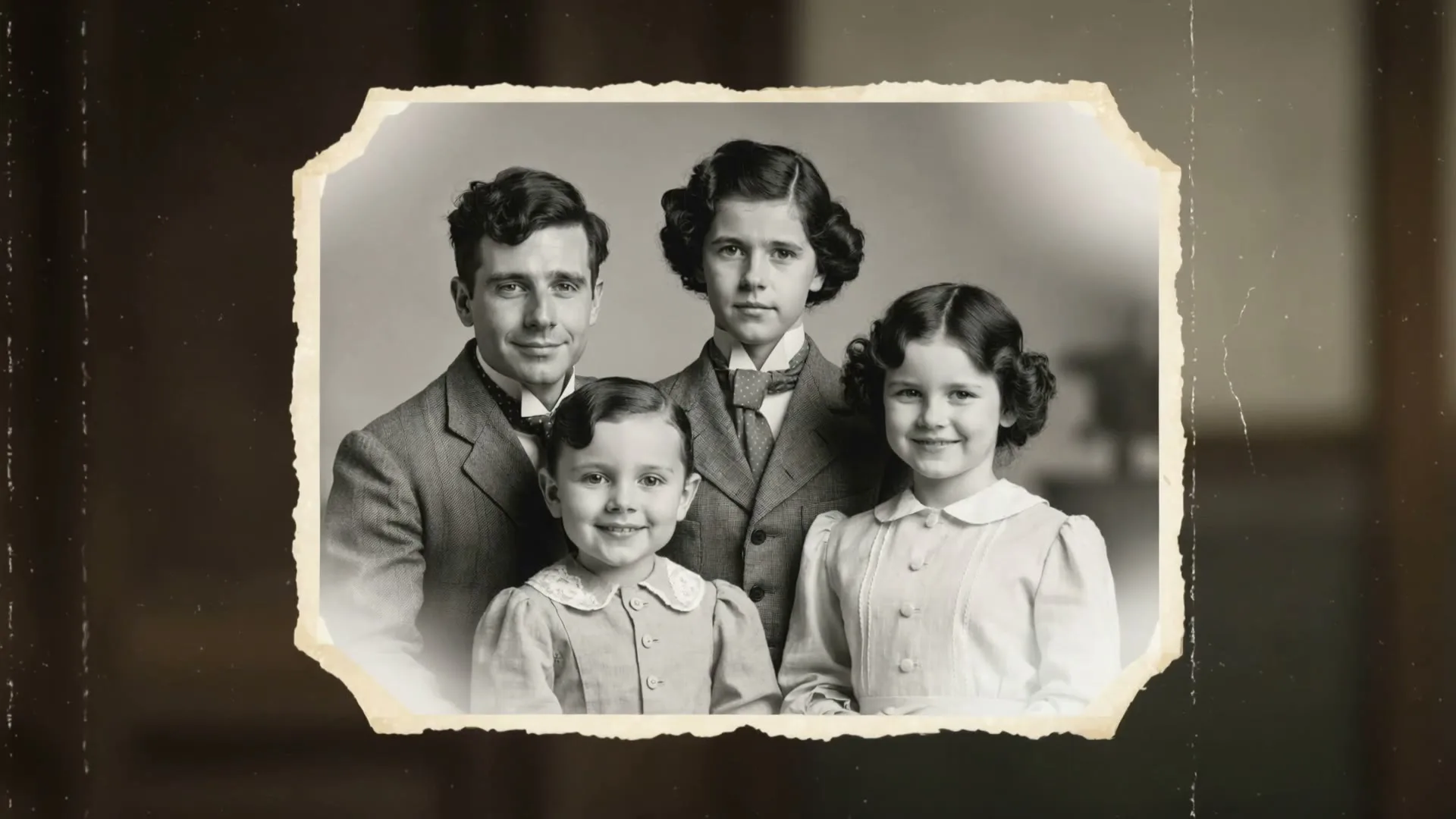
Portrait: still → subtle expression
Identity-first motion with a restrained camera push-in.
Image-conditioned video workbench
An AI video generator from image input solves the hardest part of text-to-video: keeping the subject recognizable. Your upload becomes the visual reference for the first frame, so the model starts with the exact person, product, artwork, room, or landscape you chose. A short prompt then directs what should move, how the camera should behave, and what mood the shot should create.
This makes image-to-video useful whenever visual fidelity matters more than surprise. Zvidy supports common web image formats, exposes multiple video models and settings in one console, shows the credit cost before generation, and returns a downloadable HD clip when the task completes. Use the workbench below to upload, choose a direction, generate, monitor progress, preview, and download on the same page.
Working generator
Best first test: one clear subject, five seconds, one camera move, and one environmental motion.
最新生成的视频、播放和下载入口都会显示在这里。
这里还空着——你生成的视频会出现在这里。
点击生成后,实时渲染卡片会自动出现在这里。
Source-image checklist
See it in action
These visual examples show the kind of controlled motion brief each page is designed around.
Identity-first motion with a restrained camera push-in.
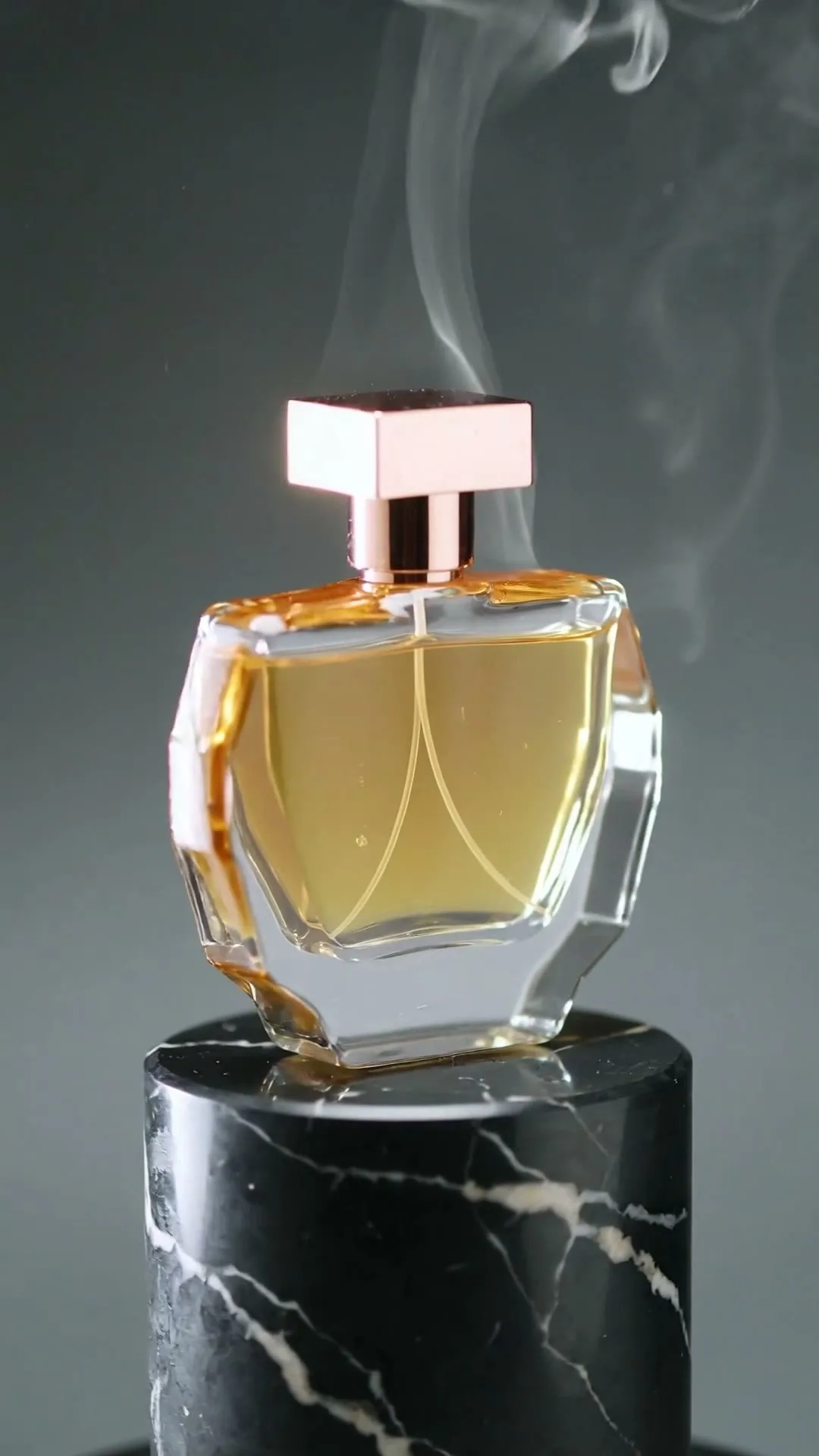
Moving highlight and camera orbit without rebuilding the brand asset.
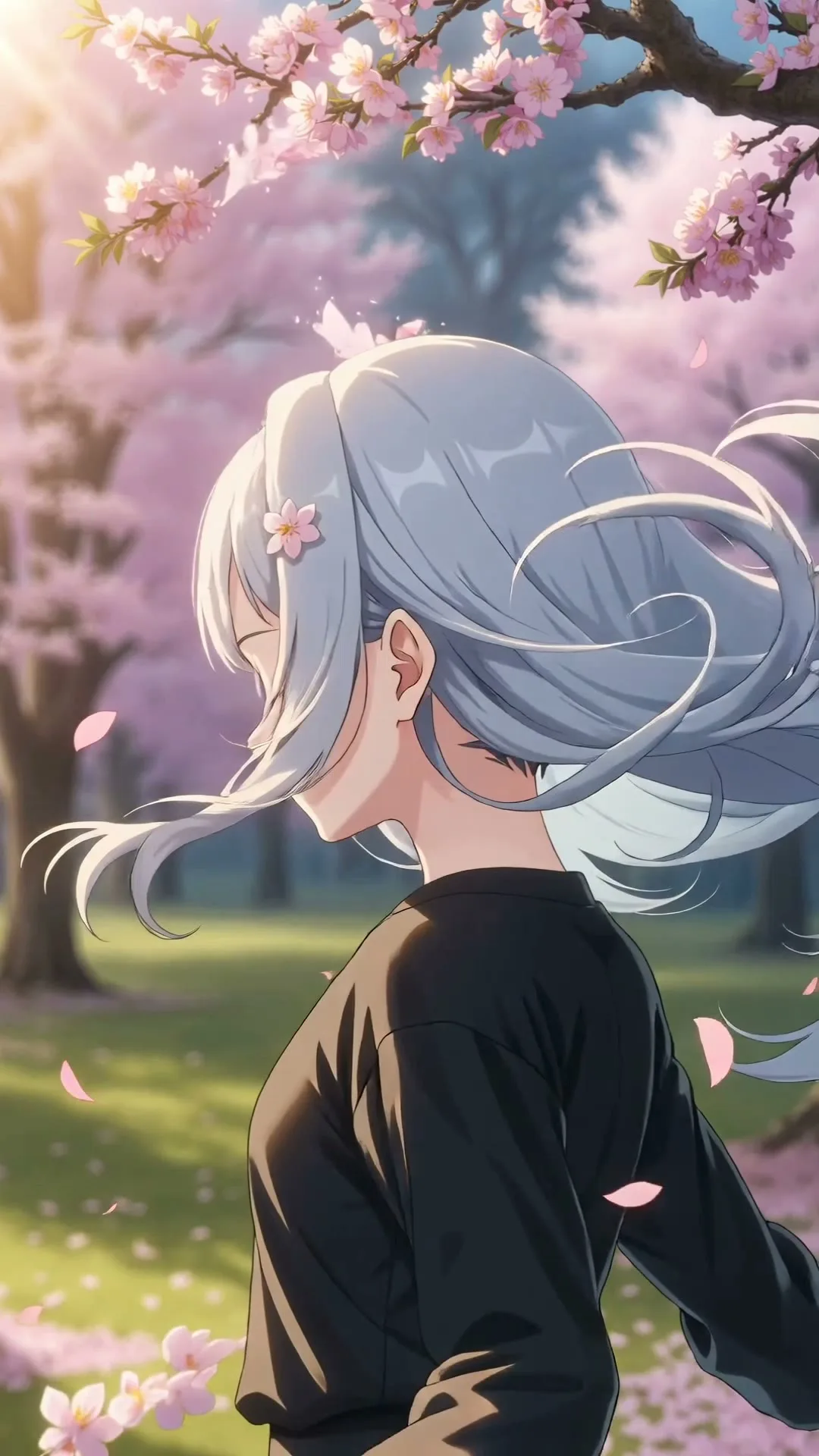
Parallax and environmental movement preserve the original style.
Plain-English guide
The model first compresses your image into a representation of shapes, textures, depth, objects, and visual relationships. It also interprets your prompt as motion and style instructions. A generative video network then predicts a sequence of future frames that should remain compatible with both signals. In simple terms, the image says “this is what the shot looks like,” while the prompt says “this is how the shot should evolve.”
The model does not recover a hidden real video from the photo. It invents plausible motion. Areas visible in the source are easier to preserve; areas revealed by a large turn or camera move must be imagined. That is why small expressions, subtle fabric motion, controlled product rotation, drifting atmosphere, and modest camera moves tend to look more stable than full-body choreography or a 180-degree orbit around an object photographed only from the front.
Different models balance fidelity, motion, speed, resolution, and cost differently. A value model is useful for testing prompt structure. A premium model may preserve faces, labels, physics, or complex camera instructions better. Zvidy keeps those choices in one interface, so you can draft economically, compare results, and reserve higher-cost generation for the version that already has a clear creative direction.
Creative playbook
Good source selection reduces retries more than adding adjectives to a prompt.
01
Choose a sharp face at a front or three-quarter angle, with uncluttered hair edges and even light. Ask for blinking, breathing, a small smile, or a slow push-in before attempting speaking, dancing, or a full turn. If identity matters, explicitly say that facial features and clothing remain unchanged.
02
Use images with visible depth layers—foreground grass, a middle-ground path, and distant mountains or architecture. Animate clouds, water, leaves, fog, sunlight, or a forward glide. Avoid asking the model to add major landmarks that were not in the source.
03
Start with a centered, high-resolution pack shot on a clean background. Keep labels large enough to inspect. Camera arcs, narrow moving highlights, mist, droplets, and small surface rotations are safer than opening packages or showing unseen sides.
04
High-contrast layers and a clear focal subject work well. Prompt for parallax, ambient particles, moving paint texture, cloth, weather, or lighting while naming the source medium so the model preserves line work, brush texture, or graphic style.
Step-by-step
Each stage below maps to a visible control or result state in the working generator.
Step 01
Choose a clean JPG, PNG, or WebP and review the thumbnail. Crop it for the destination before generation when the model follows source dimensions. A 9:16 input is safest for full-screen mobile content; 16:9 gives camera movement more horizontal room.
Step 02
Write the action as a director: subject motion, camera motion, environment, pace, and light. “Slow camera orbit, narrow rim light, fine mist” is more controllable than “make an amazing ad.” Use quick prompts as starting points, then replace generic nouns with the motion your real image needs.
Step 03
Pick the model, length, ratio, and resolution that the workflow exposes. The price badge updates before submission. Once submitted, a progress panel and generation card show whether the task is queued, generating, successful, or failed; there is no need to hunt for a separate results screen.
Step 04
Play the completed clip at full size, inspect identity and fine details, then download the MP4. Add licensed sound, captions, cuts, and brand graphics in an editor. If you need a variation, reuse the prompt and change only one variable so you can tell what improved the result.
Prompt library
Use these as a starting point. Replace only the subject-specific details and keep camera, pace, and preservation instructions intact.
Portrait
Natural blinking and breathing, a very small smile forms, hair moves in a soft breeze, slow camera push-in, realistic skin detail, face and clothing remain unchanged.
Portrait
The subject holds the pose while fabric and hair move gently, camera slides sideways in a controlled arc, crisp editorial light, premium fashion film, identity preserved.
Landscape
Clouds drift and sunlight travels across the terrain, foreground plants sway, camera glides forward slowly, realistic atmospheric depth, no new buildings or people.
Landscape
Subtle ripples move across the water and reflections shimmer, slow lateral camera movement, calm blue-hour atmosphere, composition remains faithful to the source.
Product
The camera orbits the product by twenty degrees, a clean highlight moves across its surface, faint mist behind, label and proportions remain perfectly stable.
Product
Macro camera pushes closer as condensation beads move naturally, bright controlled commercial light, shallow depth of field, packaging text remains readable.
Art
Subtle layered parallax creates depth, small particles drift, lighting breathes gently, preserve the exact illustration style, colors, line work, and character design.
Art
Ink textures flow slowly within the original shapes, camera tilts forward, soft paper fibers remain visible, elegant gallery motion, no new text.
Social
Immediate smooth zoom-in during the first half-second, background lights switch on with high contrast, subject remains stable, energetic vertical social-video timing.
Social
A small wave of light travels around the subject and returns to the starting point, subtle camera breathing, final frame matches the opening for a seamless loop.
Comparison
The “best” tool depends on whether you value one-account model choice, advanced editing, transformation effects, or direct access to a single model family.
| Platform | Image fidelity | Motion control | Workflow | Best fit |
|---|---|---|---|---|
| Zvidy | Model dependent; compare several engines | Prompt + available ratio/duration/resolution controls | One credit balance and one result feed | Creators comparing models without separate subscriptions |
| Runway | Strong on supported image-to-video models | Advanced creative and editing ecosystem | Project-based professional workspace | Teams that want generation plus deeper post tools |
| Pika | Strong for stylized transformations and effects | Accessible effect-led controls | Fast experimentation interface | Social creators exploring playful transformations |
| Kling AI | Often strong on subject consistency and physics | Detailed native model controls | Direct single-family platform | Users committed to Kling’s workflow and regional access |
Quality varies by source image, prompt, model version, region, and queue conditions. Run a short test with the same image and motion brief before choosing a production workflow.
Keep learning
Follow the next internal link that matches the job you are actually trying to complete.
FAQ
The upload workflow supports common browser-friendly formats including JPG, PNG, and WebP. Use a sharp still image rather than a PDF, document, or animated file, and follow the file-size guidance shown in the uploader.
Many short clips complete in about a minute, but model load, queue status, duration, and provider capacity can make a task faster or slower. The on-page result card shows live status so you know where to look.
Zvidy allows commercial use under its terms. You must still have the rights or permissions needed for the source image, people, brands, artwork, audio, and any other material in the finished piece.
Resolution depends on the selected model. The current catalog includes HD and model-specific 720p or 1080p choices. The generator shows available controls before you submit.
Zvidy currently focuses on the web workflow for creators. Public self-service image-to-video API access is not advertised on this page; contact support@zvidy.com for current business integration options.
Large motion reveals details the camera never captured, so the model must invent them. Reduce the camera angle, shorten the action, use a sharper source, and explicitly ask that identity, text, label, or geometry remain unchanged.
Keep the subject, brand, or artwork anchored to a real source and use AI only for the motion around it.
Generate from an image