
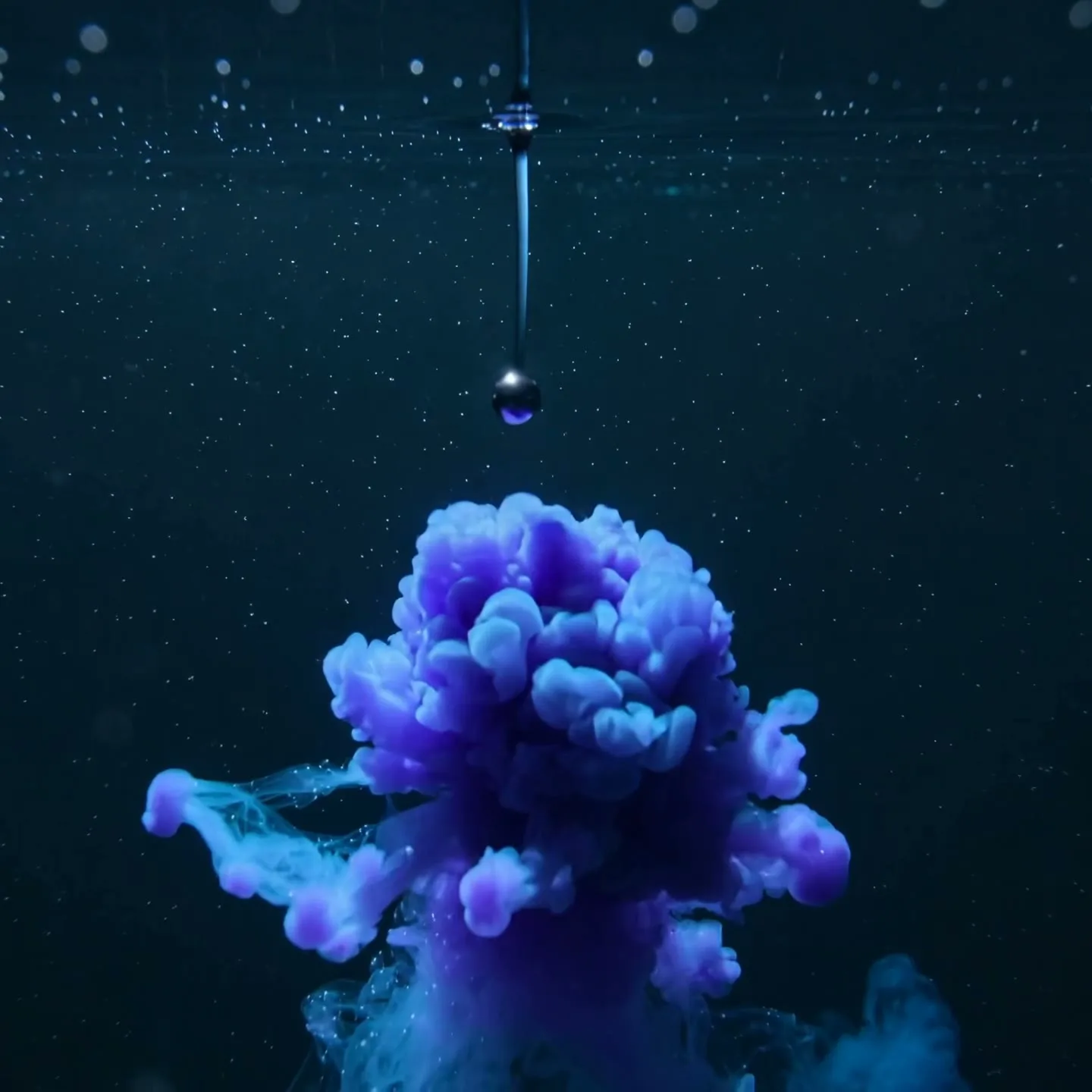
转化概念场景
16:9 · 5s
◆ Seedance 2.0 Fast
把抽象概念、产品价值或流程步骤变成清晰视觉镜头。每个场景只讲一条信息,直接在本页连续生成讲解素材库。
立即创作
写清主体、动作、镜头角度和画面风格。描述越清楚,生成效果越稳定。
每次生成一个 3–15 秒静音讲解视觉。脚本拆分、旁白、字幕、场景排序和最终组装仍需在剪辑流程中完成。
没灵感?试试这些
转化概念场景
16:9 · 5s

机制与细节视觉
1:1 · 5s
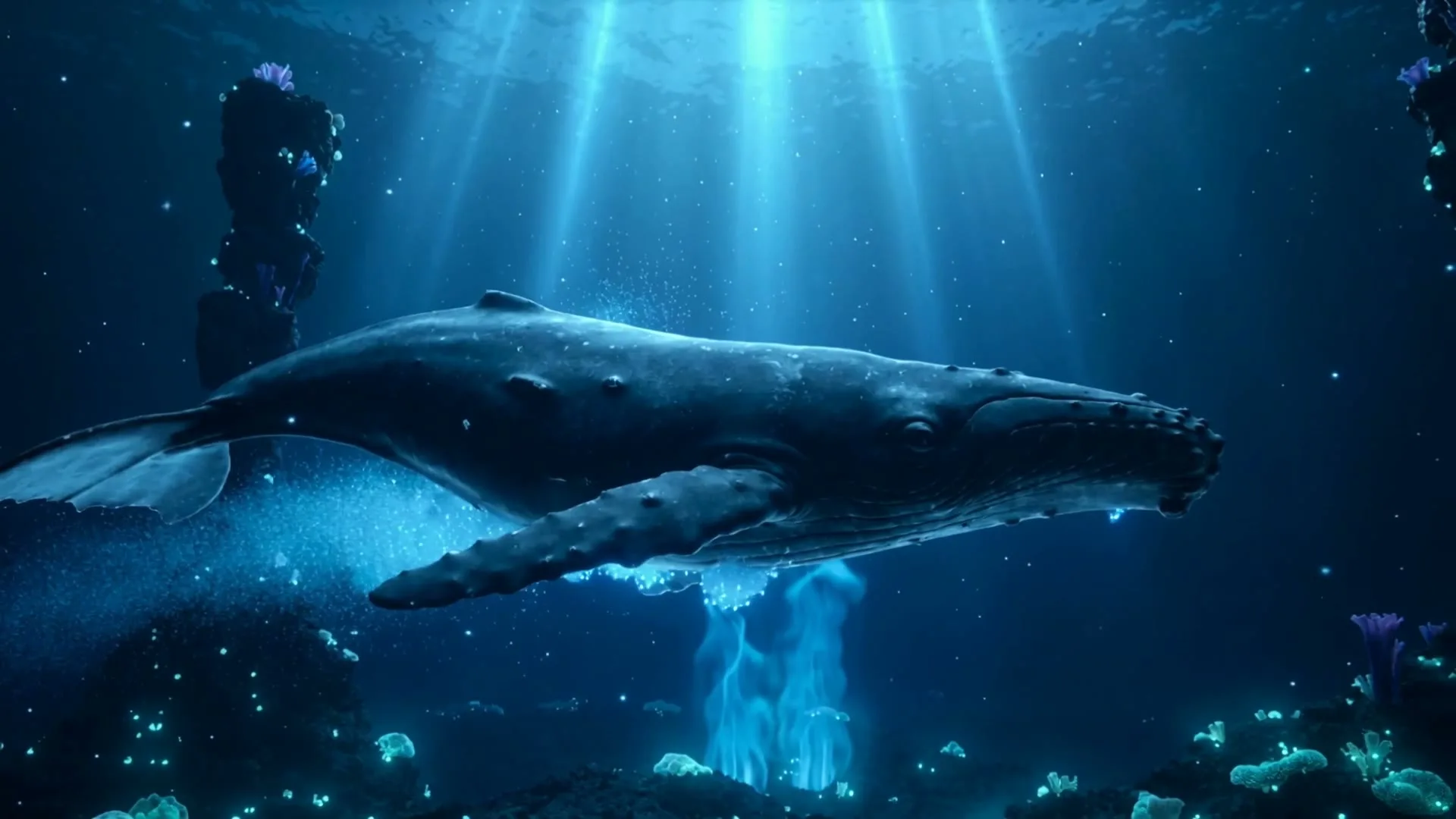
尺度与环境类比
16:9 · 5s

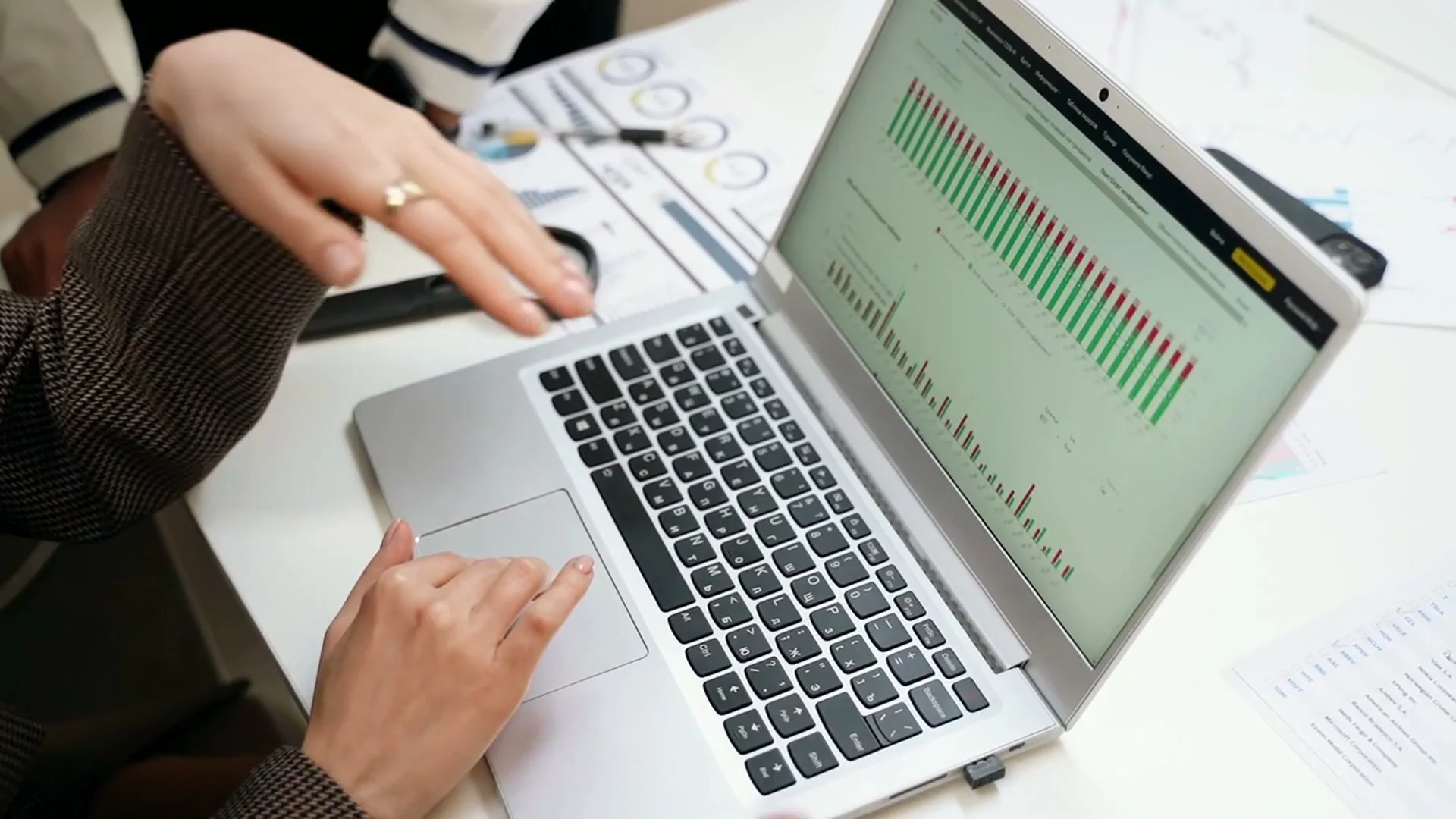
干净屏幕讲解场景
16:9 · 5s
悬停或轻触即可播放案例
A repeatable SaaS story structure
Effective SaaS explainers follow Problem → Solution → Call to Action. The problem names costly friction, the solution shows a concrete workflow, and the CTA names one next step. AI video can create connective shots, while actual interface recordings, verified claims, voiceover, and captions remain under your control.
Write the narration first, divide it into visual beats, and generate one clip per beat. Short shots are easier to direct and replace than one sixty-second generation. This example turns a project-management product into a six-scene explainer.
Scene 01
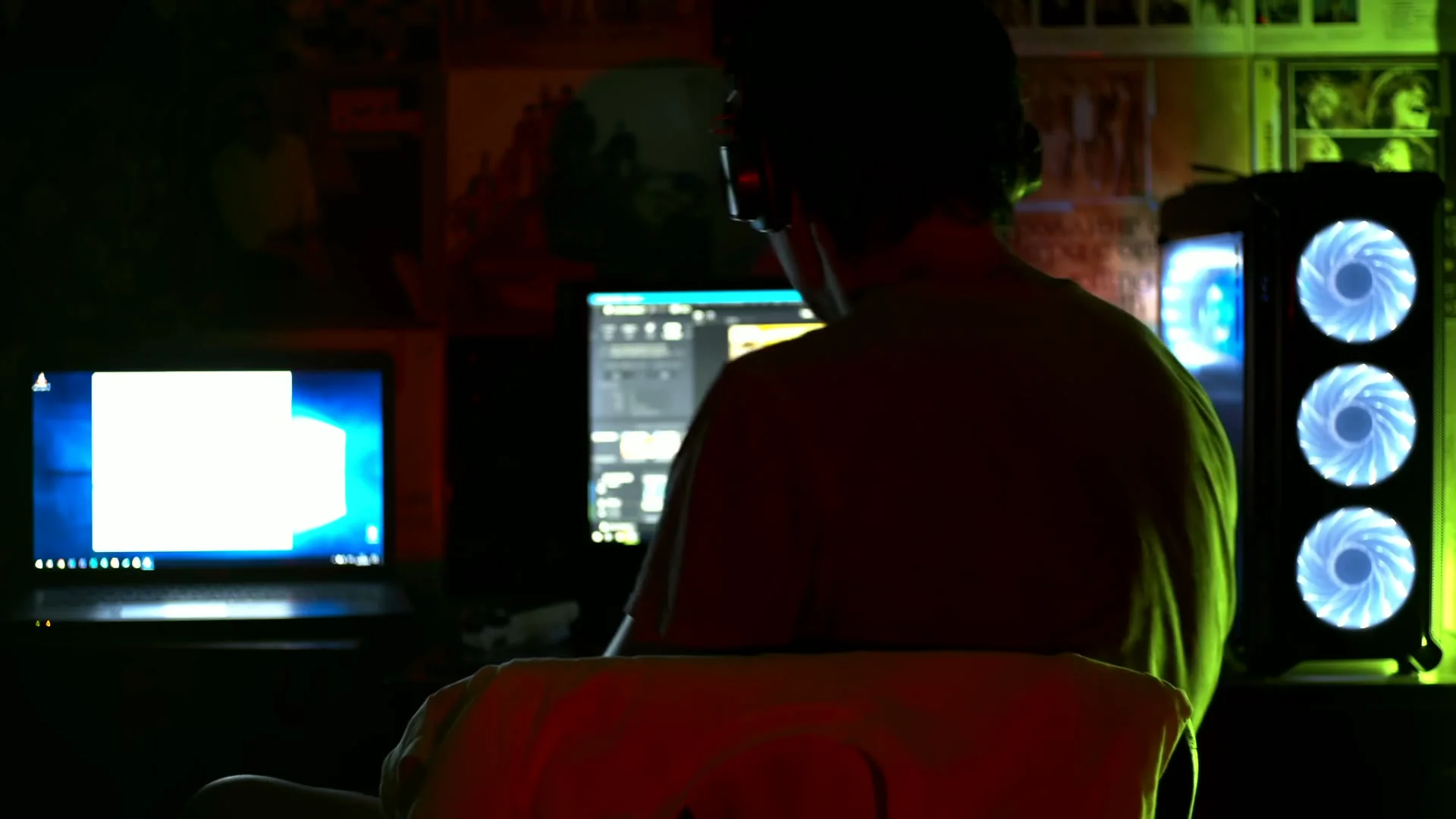
Voiceover: “Projects slow down when updates live across chats, spreadsheets, and forgotten tabs.” Show visual overload without displaying fake customer data. The goal is recognition: too many places, unclear ownership, and missed context.
Prompt example
16:9 office desk at night, overlapping notification windows and paper notes build rapidly around one overwhelmed team lead, controlled camera push-in, cool tense light, clean generic interfaces, no readable brand names.
Scene 02
Voiceover: “By the time a blocker is visible, the deadline has already moved.” Use a calendar, stalled task, or waiting team as a visual metaphor. Keep the pace slower at the end so the problem lands.
Prompt example
A project timeline glows red as one blocked task freezes the connected milestones, subtle clock shadow sweeps across the wall, cinematic 16:9 motion graphic, minimal labels, clear cause-and-effect.
Scene 03
Voiceover: “Meet Orbit, one place for plans, owners, files, and decisions.” Transition from clutter to calm. Follow this generated reveal with a real screen recording of the product so the promise is grounded in the actual interface.
Prompt example
Scattered cards and notes flow into one clean luminous workspace, colors shift from tense red to confident violet and cyan, smooth overhead camera, premium SaaS reveal, open center for a logo added later.
Scene 04
Voiceover: “Turn every request into an owned task with a due date and the context attached.” Use authentic UI capture for clicks and fields; AI can supply a brief bridge showing information moving into an organized system.
Prompt example
A message card transforms into a structured task card, owner avatar and calendar icon snap into place, smooth close-up motion, crisp dark SaaS aesthetic, no readable text, 16:9.
Scene 05
Voiceover: “Everyone sees progress, blockers, and the next decision before status meetings begin.” Show calm coordination rather than impossible performance statistics. If you display numbers, they must come from verified product or customer data.
Prompt example
Distributed team members work confidently as a shared project map updates in sync, one risk glows amber and resolves, bright morning light, steady lateral camera, optimistic realistic office tone.
Scene 06
Voiceover: “Bring your next project into Orbit. Start a workspace today.” End with a simple brand frame and one button label added in the editor. Avoid stacking several asks such as book, subscribe, share, and buy.
Prompt example
Minimal violet-to-cyan horizon glow forms a clean platform beneath a single project card, slow confident pull-back, premium dark background, generous empty center for final logo and CTA, no generated text.
真实案例
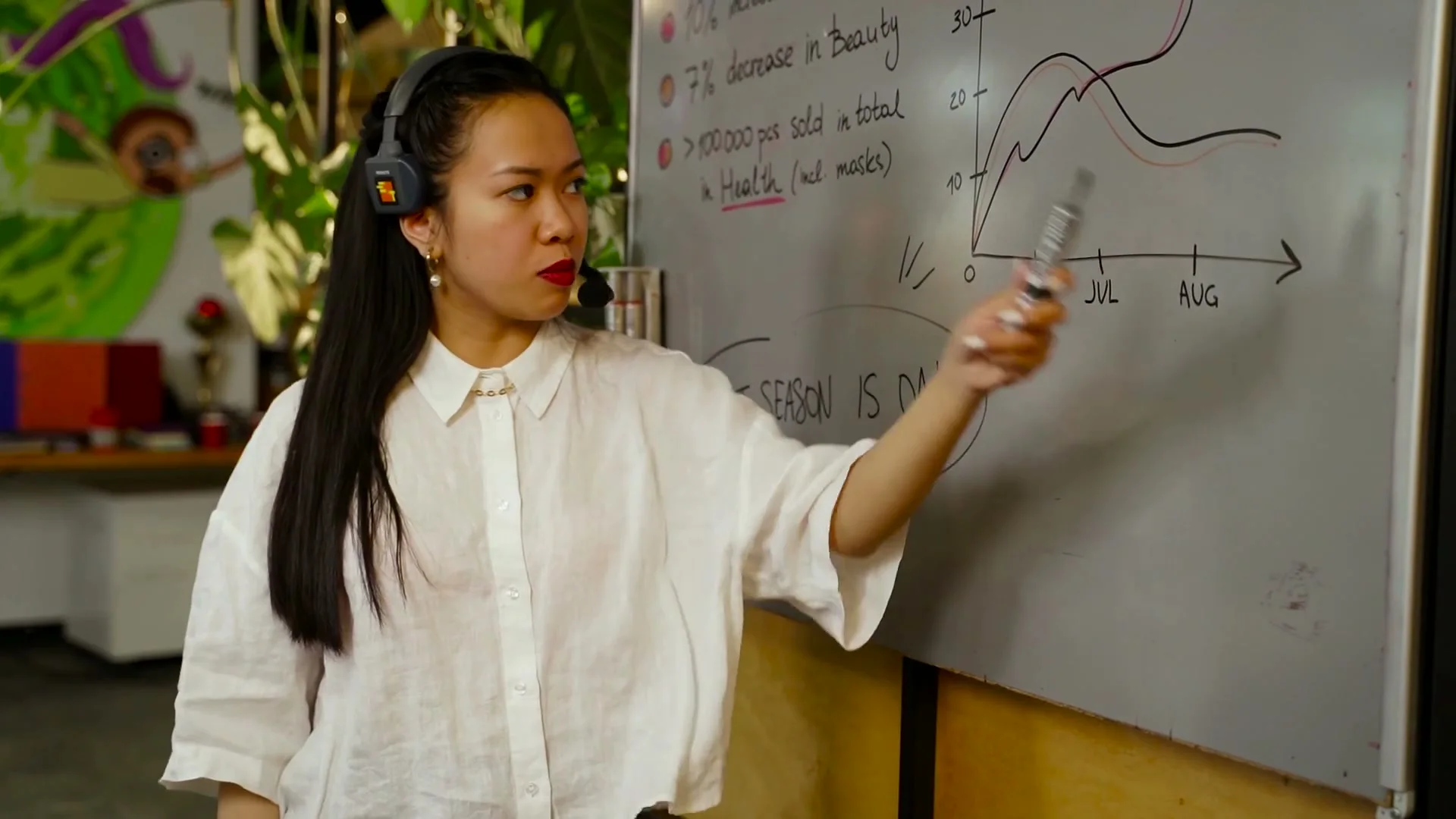
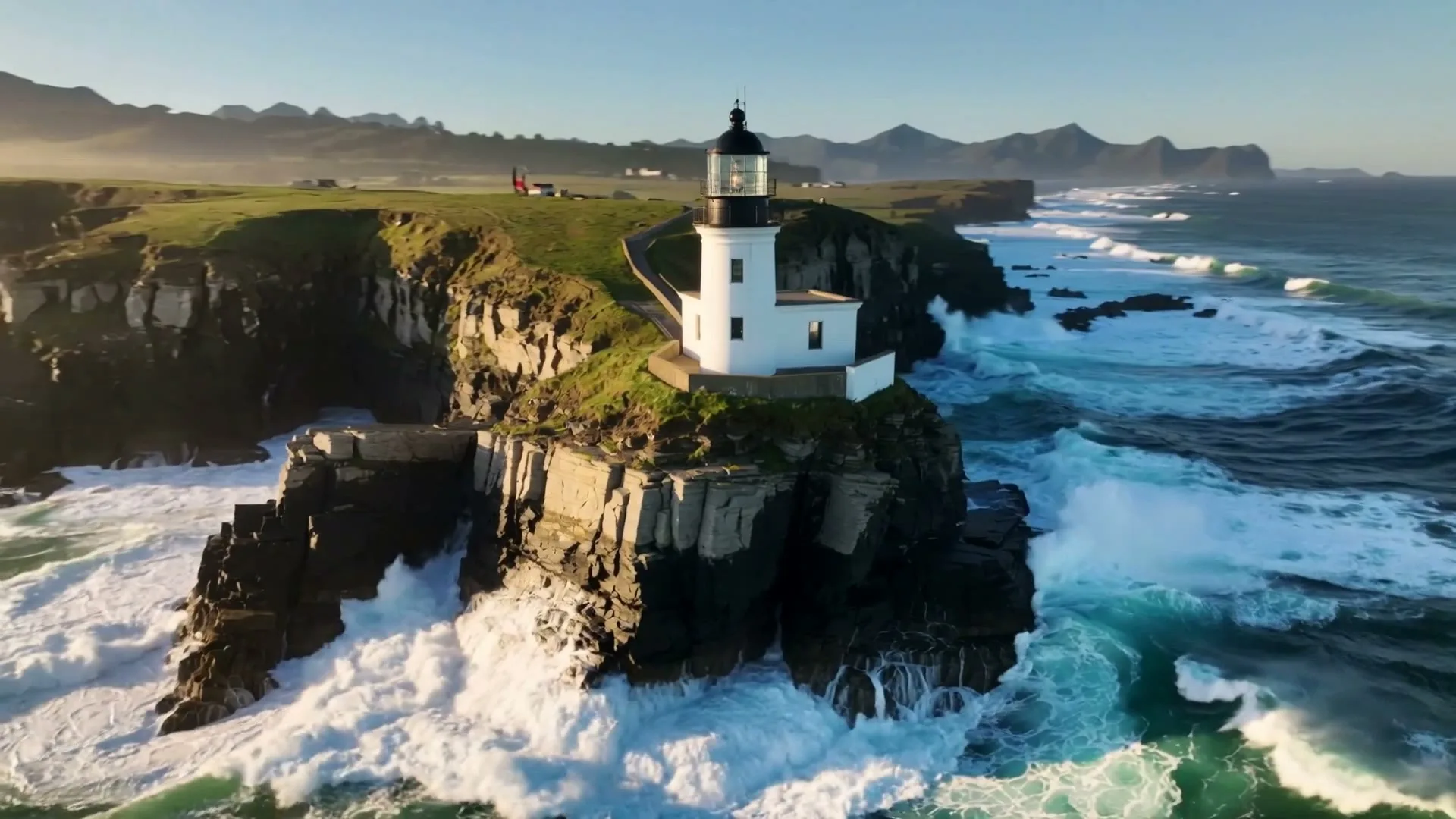
精选 Zvidy AI 输出与可商用授权参考片,覆盖社媒竖屏、商品广告和情绪叙事;先看运动、构图与光线,再把方向带入上方生成器。

功能介绍
从创意输入到可发布成片,每一步都围绕当前创作场景设计。
能力 01
聚焦提示词让每个片段都能清楚对应一句旁白。
能力 02
把系统、价值和看不见的过程转化为观众可理解的具体运动。
能力 03
默认 16:9 适合产品演示、课程、YouTube 讲解和内部汇报。
能力 04
生成多个方案并集中比较,复用表达最清楚的提示词。
把脚本拆成短节拍:问题、过程、价值和结果。
用 16:9 描述一个比喻、一个动作和一次简单运镜。
在剪辑器中把选中场景放到已校验的旁白、字幕和标签下。
当脚本中的每句话只对应一个视觉任务时,讲解更容易理解。可把叙事拆成问题、机制、价值和结果,再为每个节拍生成一个镜头。视觉比喻往往比直接模拟界面更清楚:散乱物件变得有序、护盾过滤粒子,或桥梁连接两个系统。本页负责生成画幅和时长可控的静音视觉场景;旁白、精确标签和顺序节奏则留给剪辑器,便于校验语言和主张。
案例与模板
不能自动完成。它每次生成一个视觉场景;你需要决定脚本节拍,之后与旁白和字幕组装。
不会。当前视频结果为静音,请另行录制或生成语音,并在发布前核实每项事实。
请在下载后添加。生成画面不适合承载精确界面文字、数字或受监管主张。
可用时长取决于模型,约为 3–15 秒。较短场景通常更容易讲清和剪辑。
可以切换到图生视频动画一张参考图,但小字可能变形。需要准确 UI 演示时,请保留原始截图。